 Viral AI Trend
How to make a Kong Kong King King AI video with two photos
You do not need a complicated timeline to start. The Kong Kong King King workflow is intentionally small: choose two authorized portraits, map each one to a role, and let the template carry the keyboard scene and timing.
Try Kong Kong King King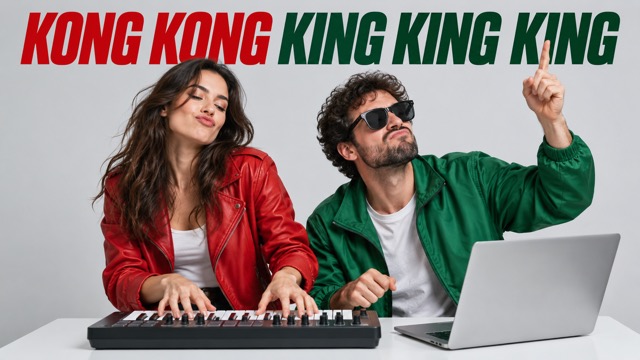
Viral AI Trend recommendation: use this effect when you need a fast, visually obvious duo concept and already have permission to use both portraits.
1. Pick the two portraits
Choose one person per image. Front-facing or three-quarter portraits with even light, visible eyes, and minimal obstruction are the safest starting point. Avoid group photos, tiny faces, heavy sunglasses, and screenshots with text over the face.
2. Set the left and right roles
The first upload becomes the left performer and the second upload becomes the right performer. The order changes the visual relationship, so try the combination that makes sense for your caption or collaboration.
3. Preview before publishing
Check face consistency, hands, keyboard contact, crops, and the first and last beats of the video. Then export or publish in a 9:16 format and add a short caption that explains who the two performers are.
Before you create
- You have permission to use both portraits.
- Each image has one clear, visible person.
- You will review the generated video before publishing.
Frequently asked questions
What image formats are accepted?
The current input panel accepts JPG, PNG, and WebP images up to 10 MB each.
What aspect ratio should I expect?
The experience is designed for 9:16 vertical short-form video.
Can I regenerate with a different pair?
Yes, once the generation adapter is enabled you can return to the effect page and try another authorized pair.
Ready to see the template in action?
Open the effect page to watch the reference, upload your two photos, and follow the same workflow.